
Product guide
How Join Camera works
Join Camera gives an event one shared guest camera. The host creates the event and decides its rules. Guests join by QR code or link, capture their perspectives, and see the resulting gallery either immediately or at a reveal time chosen by the host.
Create and publish an event
Pick the occasion, set the rules, publish the event, then share the QR invitation with guests.
01
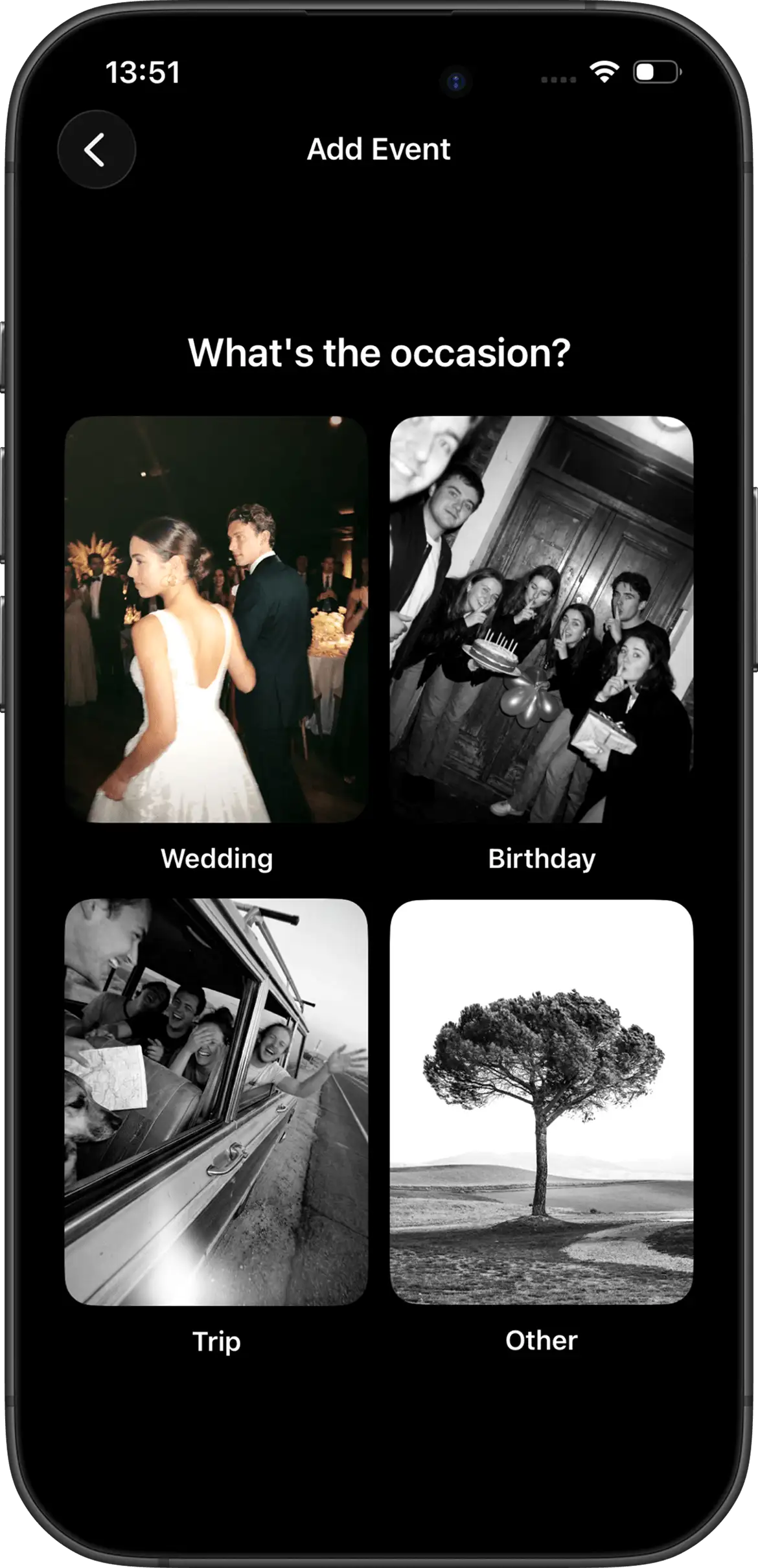
Choose the occasion
Start with the kind of gathering you’re creating.
02
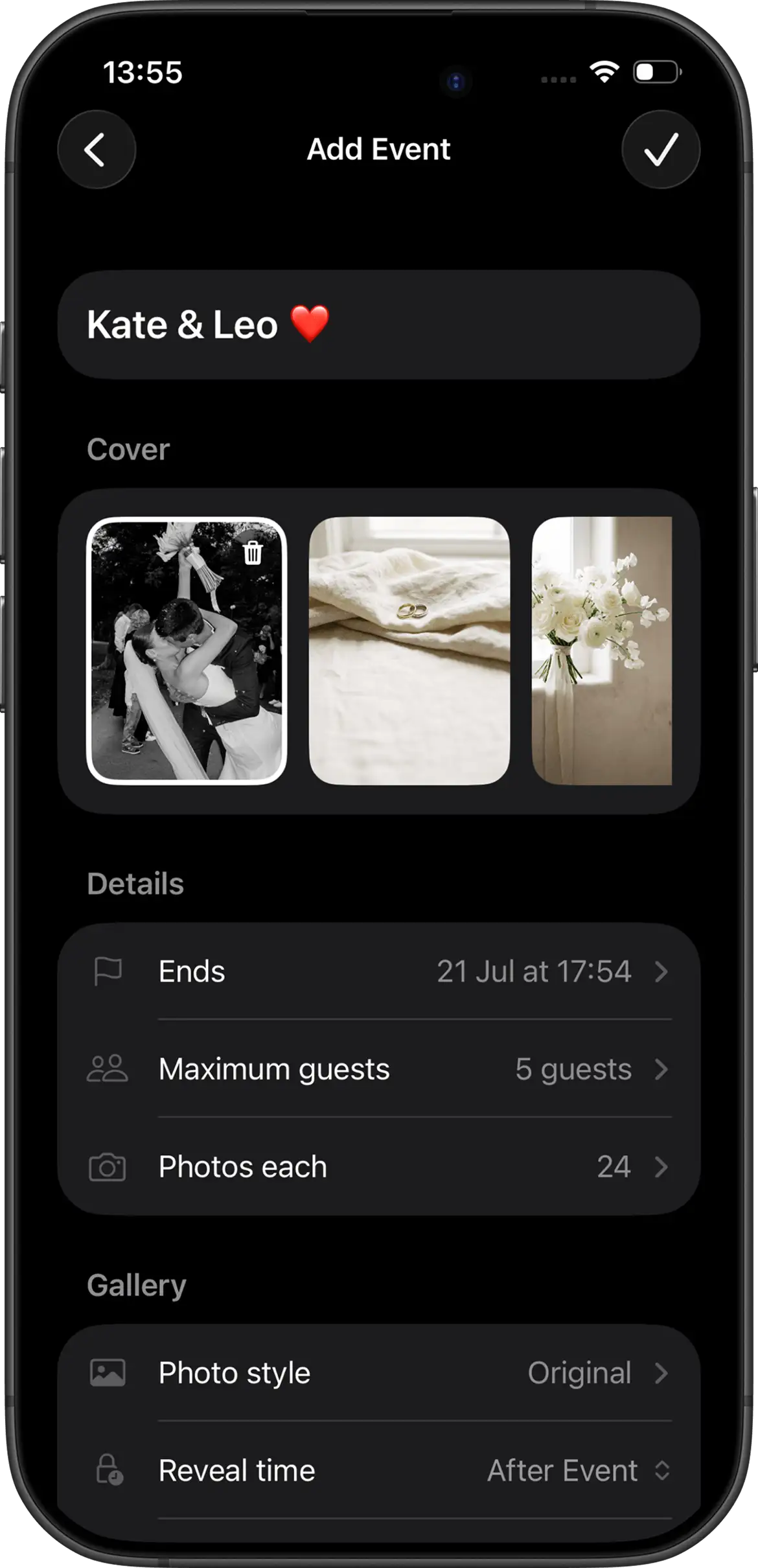
Set the details
Name the event, add a cover, and choose shot limits and reveal timing.
03
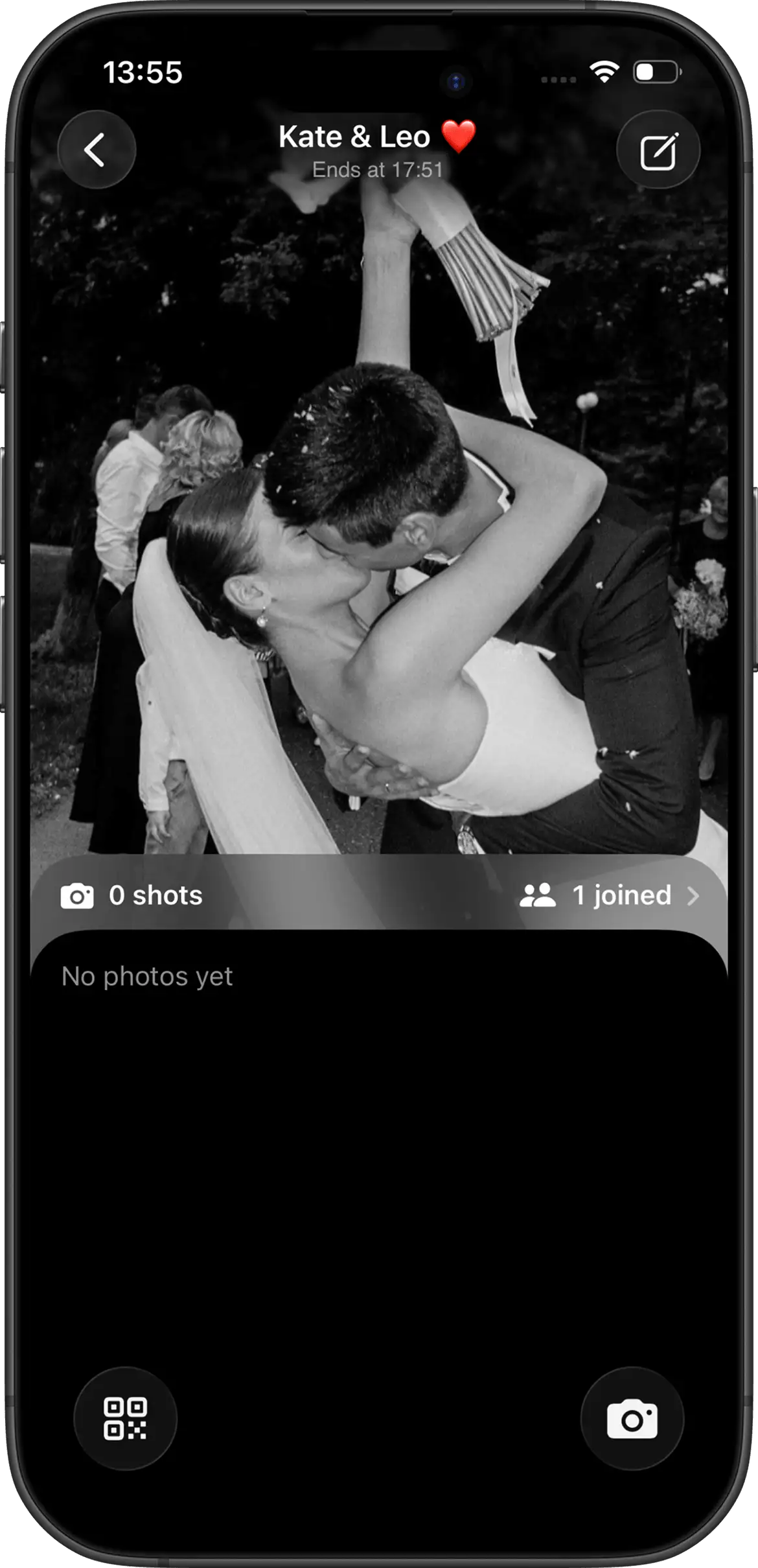
Publish the event
Your event page is ready with the cover, details, and guest capacity.
04
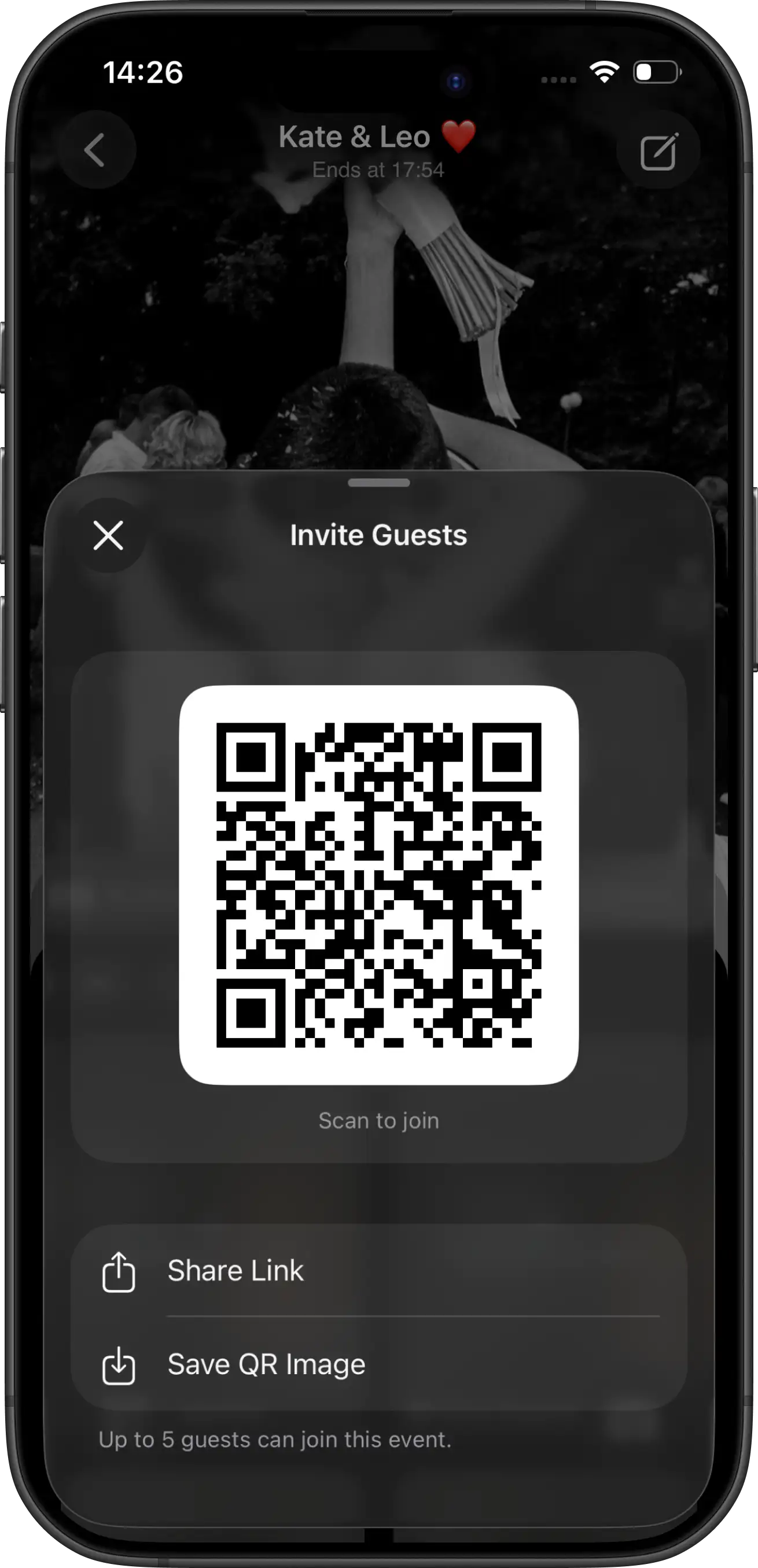
Share the invitation
Show the QR code or send the invite link so guests can join instantly.
The complete event flow
01
The host creates an event
Start in the Join Camera iPhone app, name the event, and add a cover. The host controls participant capacity, whether guests receive a limited number of shots, and how the gallery reveal behaves.
02
Choose instant or delayed reveal
Instant reveal lets participants see the shared gallery during the event. Delayed reveal keeps captured photos out of view until the configured time, recreating the anticipation of developing a film roll.
03
Share the event QR code or link
Every event has an invitation that can be shared as a QR code or link. Put the QR code on event signage, table cards, or a presentation. Send the link through a group chat, invitation, email, or event website.
04
Guests open the camera
On iOS, a compatible guest can open the Join Camera App Clip without installing the full app. The participant joins the private event and can start capturing under the rules the host selected.
05
Photos upload into one gallery
Captured shots appear with upload progress. If an upload fails, it stays available to retry or remove. Pending files persist if the participant leaves or closes the app, reducing the chance that an unstable connection silently loses a photo.
06
The event gallery is revealed
With an instant event, the gallery grows during the celebration. With delayed reveal, participants wait until the host’s chosen time. Either way, everyone’s different viewpoint comes together in the same event.
Host controls, in plain language
- Participant capacity: controls how many people can join the event.
- Optional shot limits: create film-like scarcity, or use unlimited shots when desired.
- Reveal mode: show the gallery instantly or delay it until later.
- Private access: the event invitation controls who can join its shared camera.
- Event cover: gives the guest experience a recognizable event identity.
App Clip to full app continuity
The App Clip is not a throwaway session. If a guest later installs the full Join Camera app, the shared installation identity and guest session allow them to continue without losing the event they joined.
Sign-in remains optional for that transition. If the participant signs in later, the guest session can merge with the account. Read the dedicated App Clip guide for compatibility and practical invite details.
Create your first event


Questions? Contact us.
Frequently asked questions
How do guests join a Join Camera event?
Guests scan the event QR code or open its invite link. On a compatible iPhone, the Join Camera App Clip opens without requiring the guest to install the full app first.
Can guests join without downloading the full app?
Yes. The iOS App Clip provides the guest camera flow without a full App Store installation. The full Join Camera app remains available for hosts and guests who want it.
Can the host limit how many photos guests take?
Yes. Shot limits are optional and controlled by the host. An event can use limited shots for a disposable-camera feeling or unlimited shots when broader collection is more important.
When do event photos become visible?
The host chooses instant or delayed reveal. Instant reveal makes photos visible during the event; delayed reveal keeps them hidden until the configured reveal time.
What happens if a photo upload fails?
The photo remains available in the app with controls to retry or remove it. Join Camera preserves pending upload files if the participant leaves or closes the app, rather than silently discarding them.
Can someone move from the App Clip to the full app?
Yes. Join Camera carries the guest session into the full app so the participant can continue without losing the event they joined. Signing in is optional, and the guest session can merge when they do sign in.
See current guest capacity and unlimited-shot purchases, or learn how the workflow applies to weddings.