
Guest access
Join an event without downloading the full app
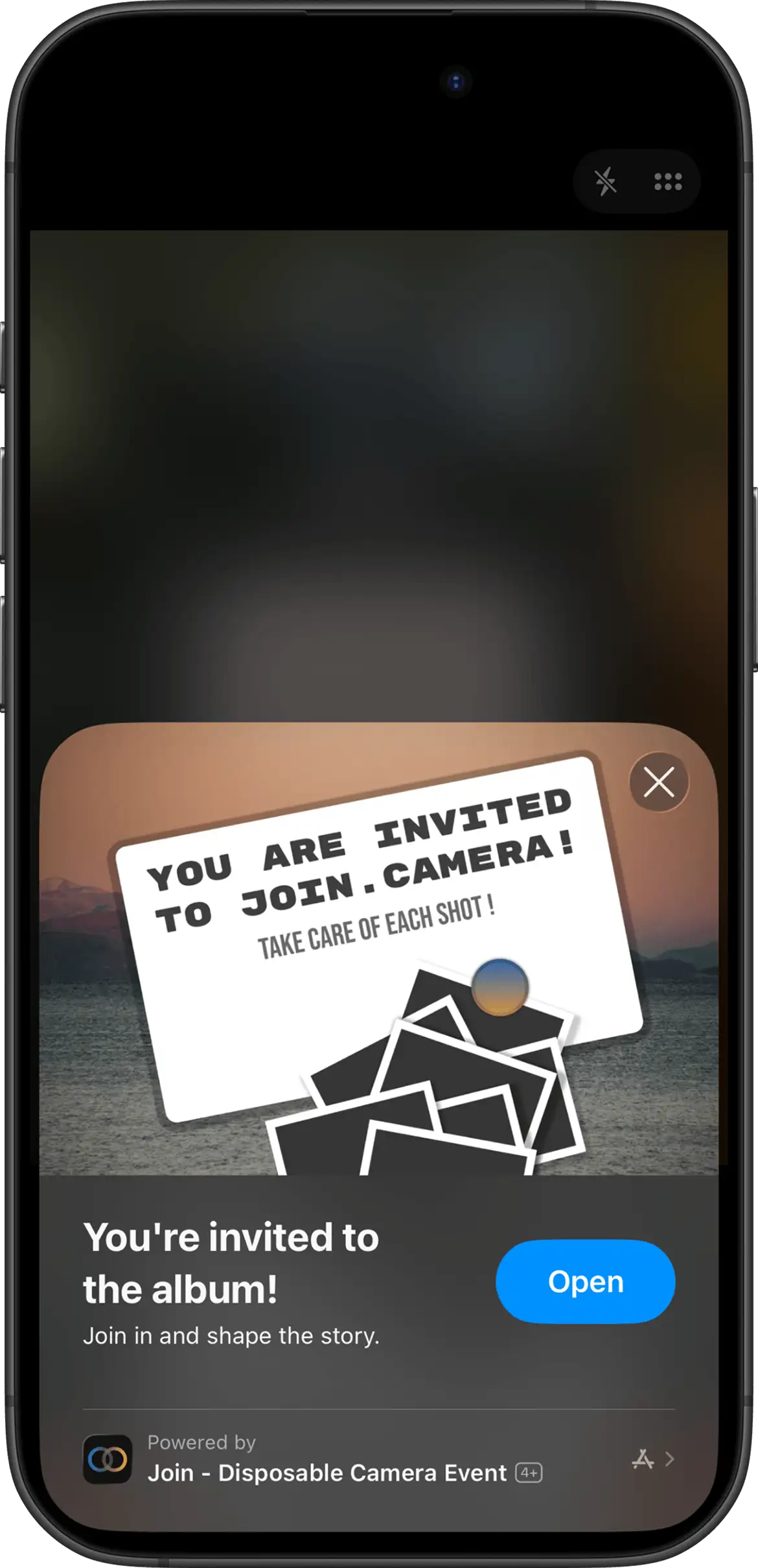
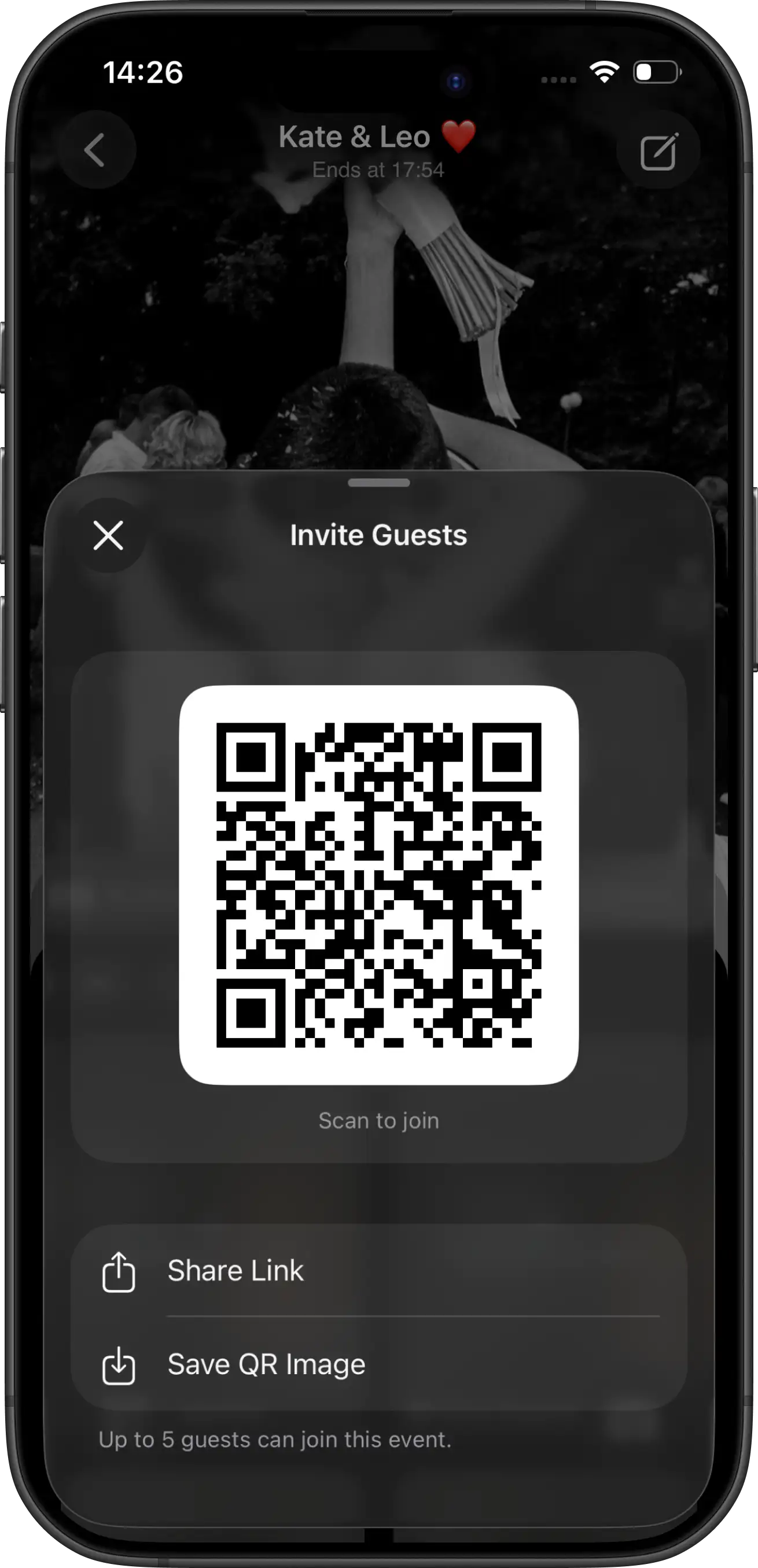
Join Camera uses an iOS App Clip for the guest camera. A guest scans the event QR code or opens its invite link, joins the private event, and starts capturing without first finding and installing the full app from the App Store.
Why the App Clip exists
An event may have dozens or hundreds of guests. Requiring each person to install an unfamiliar app, create an account, and find the correct event creates avoidable friction — especially at the venue.
The App Clip removes the full-install step for compatible iPhones. The invitation itself opens the event-specific experience. Guests can participate when the moment happens instead of preparing an account days in advance.
What the guest does
- Scan the host’s QR code or tap the event invitation link on iPhone.
- Open the Join Camera App Clip presented by iOS.
- Join the event and allow camera access when requested.
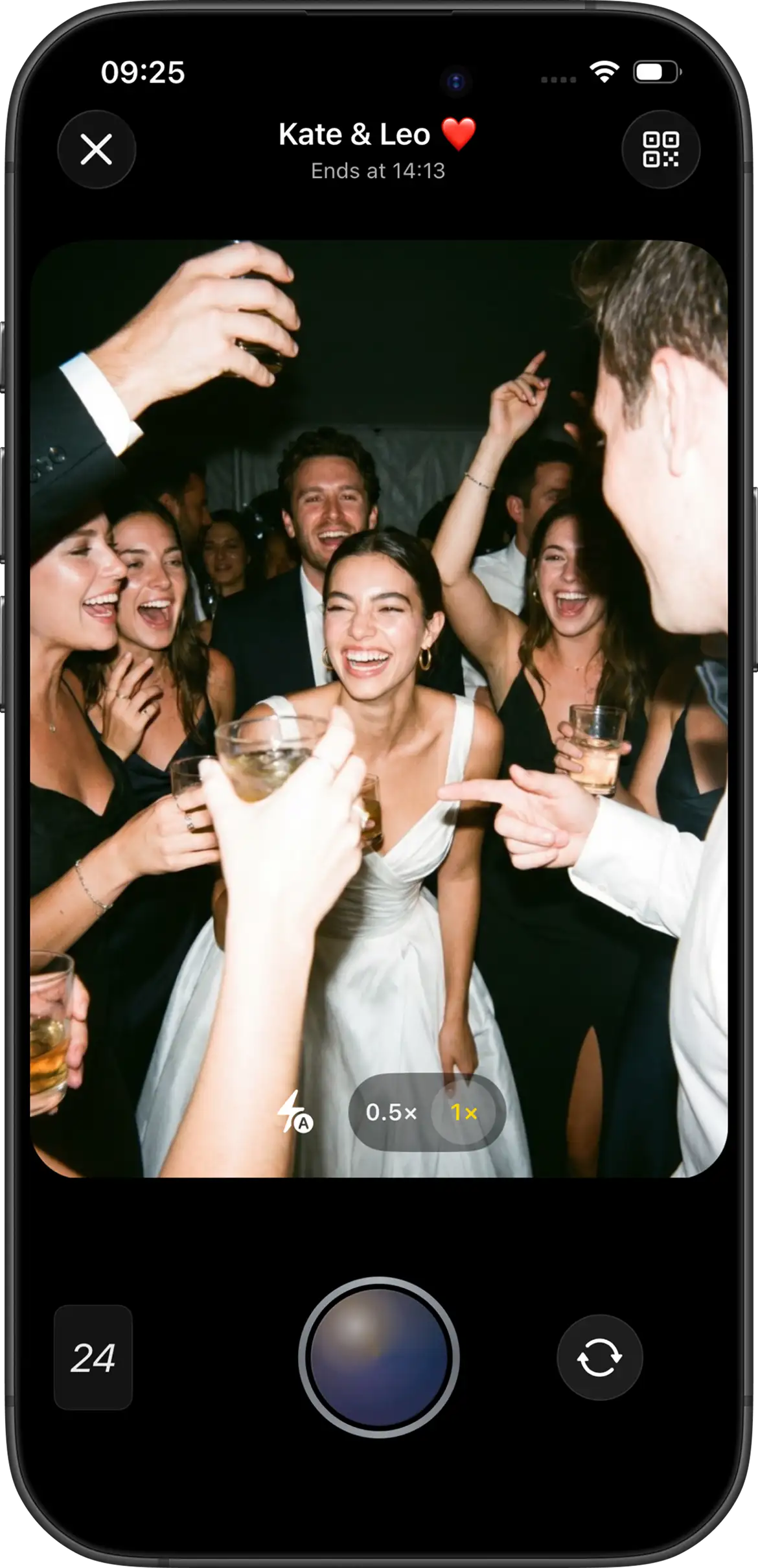
- Capture photos under the event’s shot-limit and reveal settings.
- Return to the event later, or install the full app and continue the same guest session.
Moving to the full app without losing the event
Join Camera shares the installation identity and guest session between the App Clip and full iPhone app. When a guest installs Join Camera after participating through the App Clip, the full app can continue that session rather than presenting an unrelated, empty experience.
Signing in is optional for the transition. If the guest chooses to sign in, their guest participation can merge with the signed-in account.
Upload behavior guests can see
- New shots appear with a visible upload progress ring.
- Failed uploads remain available instead of disappearing silently.
- A failed shot can be retried or removed by the participant.
- Pending files persist when the participant leaves or closes the experience.
- Vintage and black-and-white processing uses one combined progress indicator for the shot.
Current compatibility
Join Camera is available on iPhone and Android. The no-full-download claim on this page refers specifically to the iOS App Clip flow. Android guests join from the same QR code or invite link in the Join Camera app.
Try the Join Camera host app


Questions? Contact us.
Frequently asked questions
What is the Join Camera App Clip?
It is a lightweight iOS experience that lets a guest join an event and use its camera without installing the full Join Camera app first.
How does a guest open the App Clip?
The guest scans the event QR code or opens its invitation link on a compatible iPhone. iOS presents the Join Camera App Clip for the event.
Does the App Clip require an account?
No account is required to continue as a guest. If the participant later installs the full app, sign-in remains optional and the guest session can continue.
Will guests lose their event if they install the full app?
No. Join Camera shares the installation identity and guest session between the App Clip and full app, allowing the participant to continue in the event.
What devices are currently supported?
Join Camera is available on iPhone and Android. The App Clip guest flow is iPhone-only and requires iOS 17.0 or later. Android guests join from the same QR code or invite link in the Join Camera app.
Can a poor connection lose an unfinished upload?
Join Camera keeps a failed shot available for retry or removal. Pending files persist if the app is left or closed so the participant can resume rather than starting over.
Continue with the full event workflow, or see how QR and App Clip access can be used at a wedding.